Notice
Installing an unconfirmed root CA certificate may compromise the security of your system and the confidentiality of your data.
Once a Root CA certificate is installed as trusted, the system automatically trusts all certificates signed by that authority.
If an attacker controls an illegally installed Root CA, they can:
- intercept your connection (e.g. to a bank),
- issue a fake SSL/TLS certificate,
- impersonate a website,
- read and manipulate transmitted data (logins, passwords, messages, transactions).
Therefore, before installing a Root CA certificate, we recommend performing the following check.
- Find the SHA1 fingerprint of the Root CA certificate you want to install.
Note the year the certificate was issued - this will make it easier to find information about it in the next step.
In the example below, it is "2021".

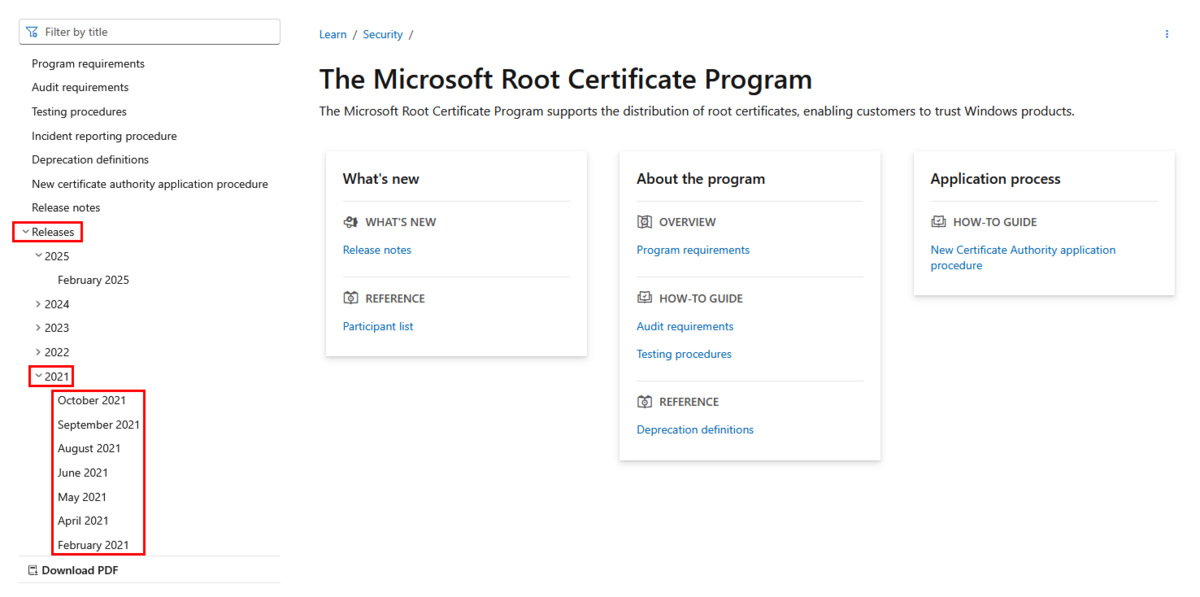
- On the Microsoft Root Certificate Programme website, search for the certificate you want to install.
On the programme page, in the Releases section, expand the year of certificate implementation and find it by browsing month by month.
You can also paste the copied SHA1 fingerprint into the search engine on the page and find information about the certificate this way.

- Compare the values of both SHA1 fingerprints.
They may differ in format (additional ":" characters or case sensitivity), but the alphanumeric string must be identical.
Only then can we confirm that Microsoft has approved a specific Root CA certificate.
- Download the Root CA certificate file and open it.
Before installing the certificate, go to the Details tab and find the Thumbprint parameter, i.e. the SHA1 fingerprint.
The value in this field must also be identical to the previously read values.
Only complete identicalness guarantees that you are installing the correct certificate, approved by Microsoft.


