Skip to content Skip to footer

Updating the AGH VPN certificate file

Downloading the configuration file

  1. Go to the AGH Panel and log in with your AGH e-mail credentials.

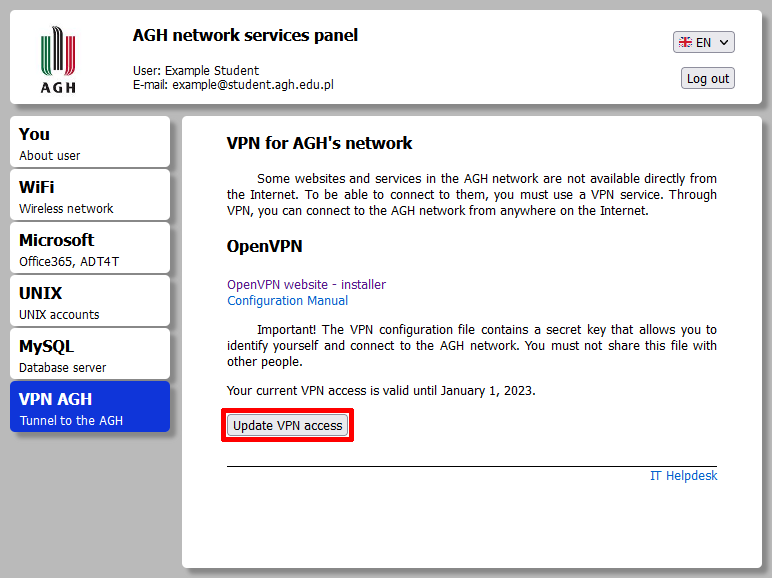
  2. Select the "VPN AGH" tab and press "Update VPN access".
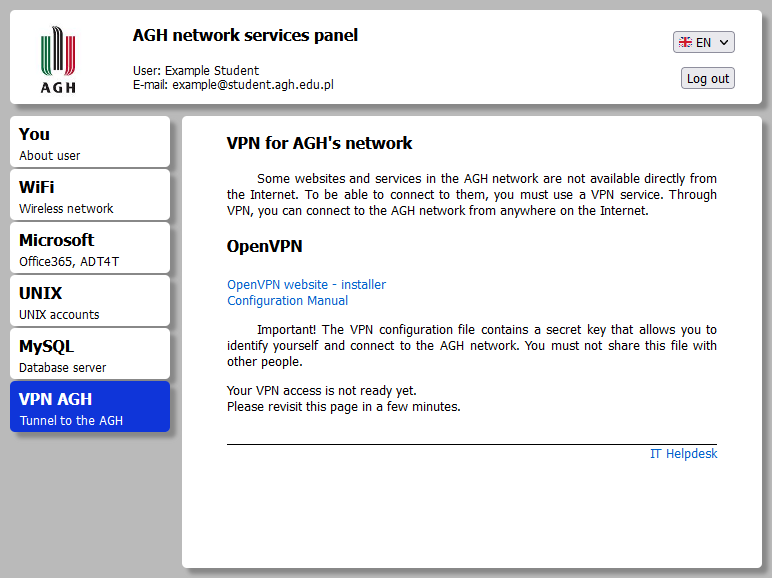
  1. A message will be displayed: "Your VPN access is not ready yet". Wait a few minutes and refresh the page.
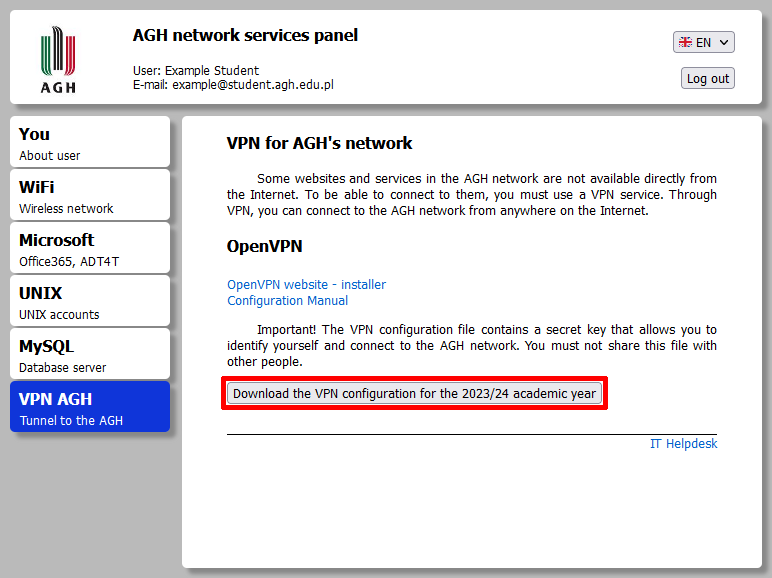
  1. Press the "Download the VPN configuration for the 2023/24 academic year" button and save the VPN certificate on your device.
Updating the AGH VPN certificate file on Windows

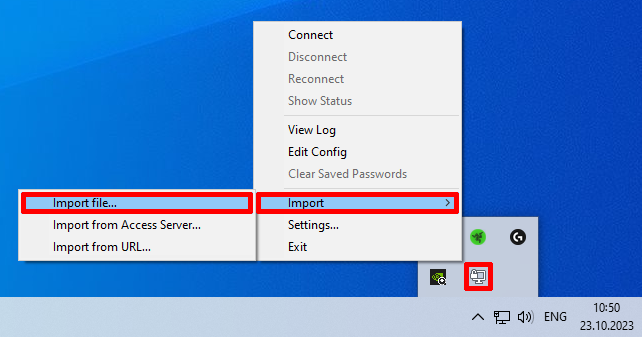
  1. Launch OpenVPN as an administrator (the program will open in the tray in the bottom right corner of the screen). Right-click the OpenVPN icon and select "Import" > "Import file".
  1. Find the VPN certificate you have downloaded earlier from the AGH Panel, select it and press "Open".

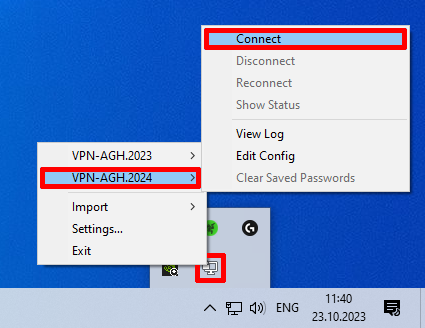
  2. Open the OpenVPN menu, select the current certificate and press "Connect".

Updating the VPN connection on macOS

  1. Launch OpenVPN and change the tab to "File". Select "Browse" and find the new certificate file you have downloaded earlier from the AGH Panel, or drag and drop it onto the designated area.
  1. Press "Connect".
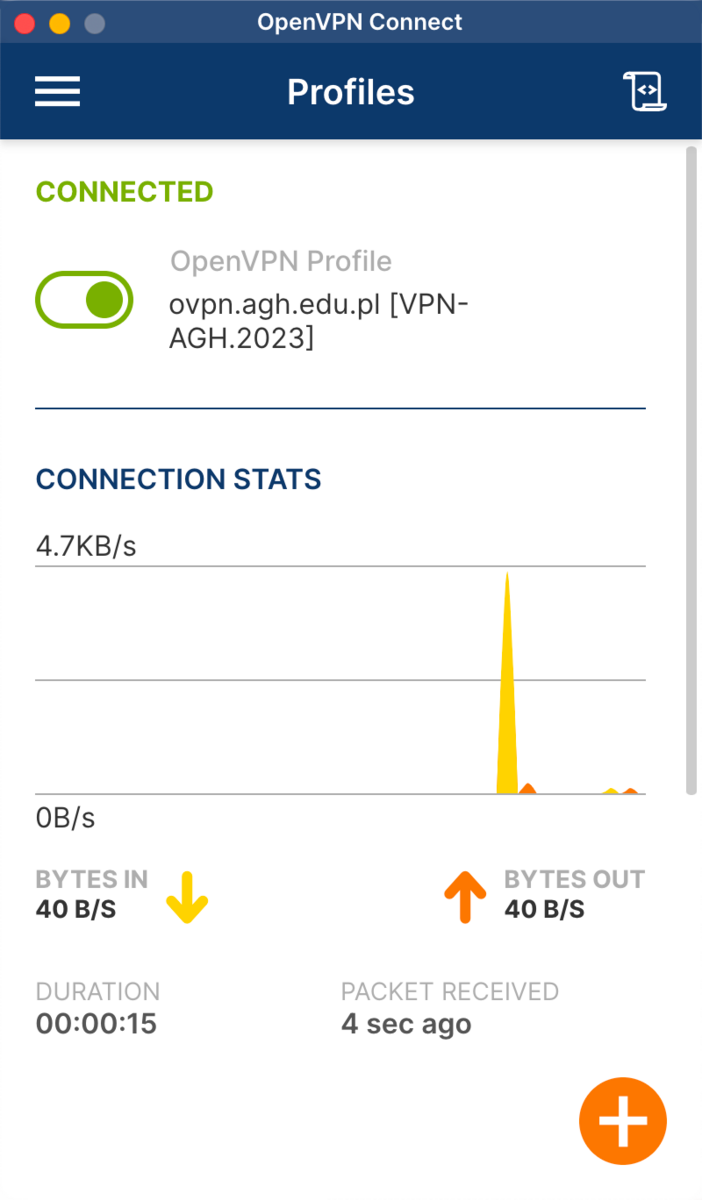
  1. If the "Connected" status appears, you have successfully connected to the AGH VPN.

Stopka