An email signing and/or encryption certificate is an additional security measure that allows messages to be authenticated in order to enhance the security of correspondence.
What are the benefits of an email signing/encryption certificate?
- Message signing – ensures the recipient that the message was sent by the person who owns that email account.
- Message encryption – ensures that the message can only be read by authorised individuals.
To use the email encryption feature, you must:
- configure your email account in your email client. See the guide: Outlook setup;
- import your current S/MIME certificate. See the guide: Importing your own email certificate into Classic Outlook.
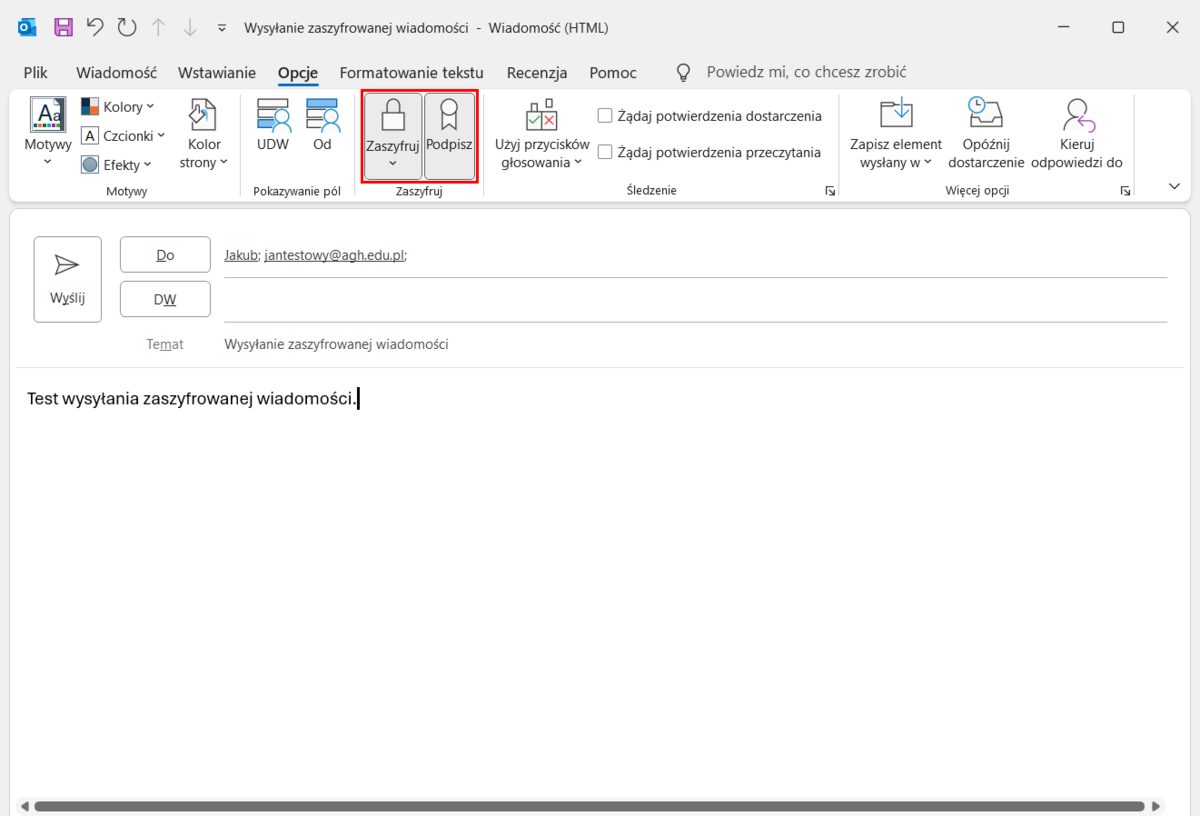
The encryption process itself involves ticking or unticking the “Encrypt" option when composing a new message or replying to one.
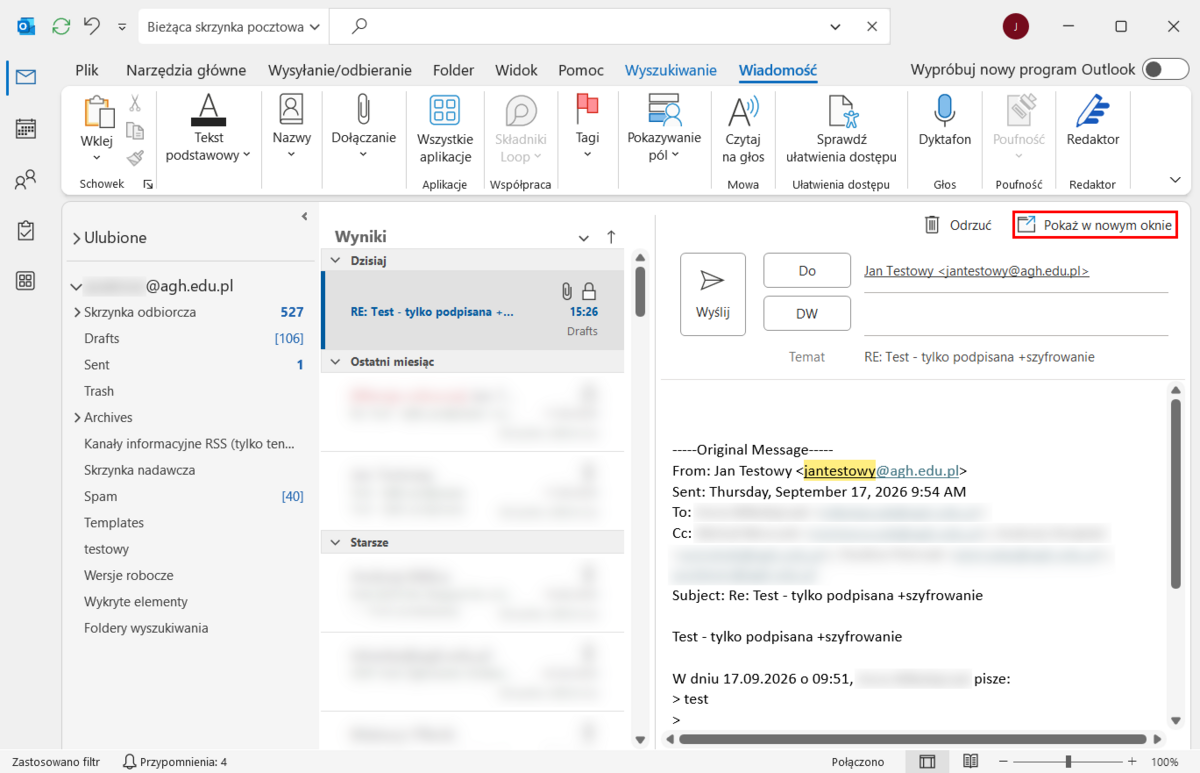
When replying to a message, these options are hidden. You must first click the “Show in a new window” button.
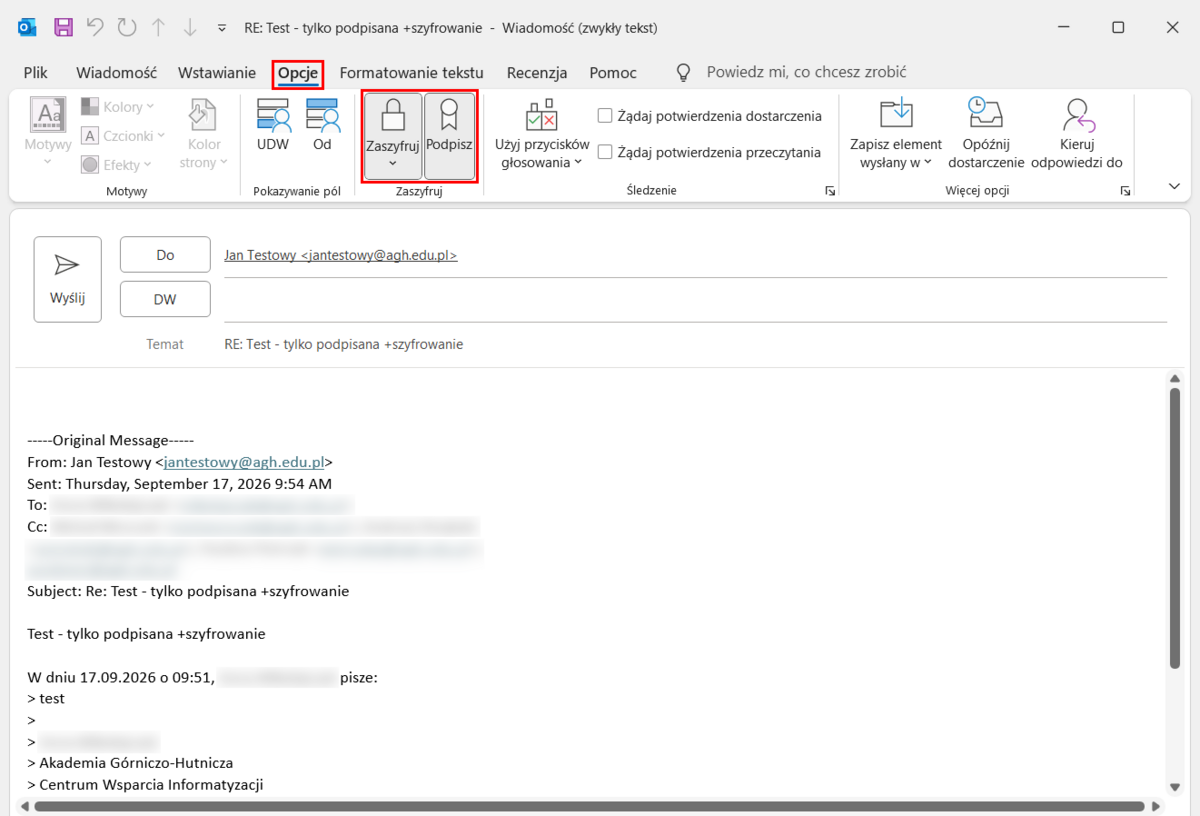
Next, go to the “Options” tab and, just as when creating a new message, tick or untick the “Encrypt” option.
Important
If you try to send a message to someone whose public key you do not have, Outlook will inform you that there has been a problem with encryption.
In Classic Outlook, to encrypt messages, you must have the recipient added to your contacts on that device and possess the public key of the recipient to whom you wish to send the message. To do this, send a digitally signed message and ask for a reply, which must also be digitally signed. Following this exchange of messages – known as a “handshake” – it will be possible to encrypt messages.

Info
We also encourage you to take a look at the Frequently Asked Questions (FAQ) section.

